Understanding Twitch's Platform Requirements
Twitch has established itself as the leading platform for live streaming, particularly in gaming, creative content, and more recently, "Just Chatting" streams. With over 140 million monthly active users, Twitch offers content creators substantial reach and community-building potential. However, to maximize your success on the platform, it's crucial to understand and implement Twitch's specific dimension requirements for everything from your stream quality to your channel's visual elements.
Unlike social media platforms that accommodate various content formats, Twitch is primarily designed around the 16:9 widescreen viewing experience, with specific requirements for channel elements that enhance your brand presence and viewer engagement. This guide covers all the essential size specifications you need to create a professional, cohesive Twitch channel.
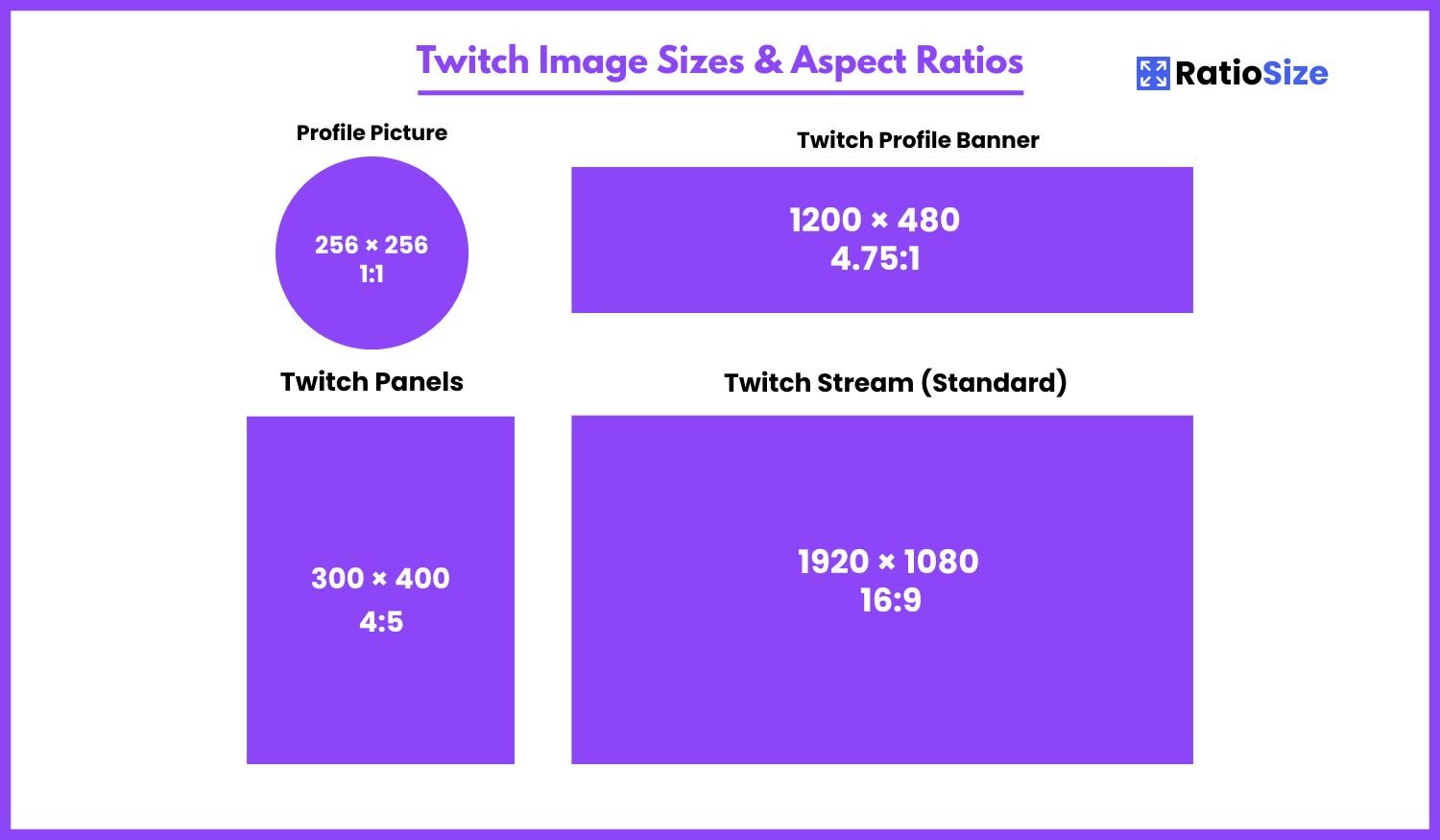
Twitch Size Chart
| Content Type | Aspect Ratio | Dimensions (pixels) | Notes |
|---|---|---|---|
| Stream | 16:9 | 1920 × 1080 | Standard HD broadcast |
| Profile Picture | 1:1 | 256 × 256 | Displays as circle |
| Profile Banner | 4.75:1 | 1200 × 480 | Channel header |
| Video Player Banner | 16:9 | 1920 × 1080 | Displayed when offline |
| Panels | Variable | 320px max width | Height varies |
| Emotes | 1:1 | 28×28, 56×56, 112×112 | Three sizes required |
| Badges | 1:1 | 18×18, 36×36, 72×72 | Three sizes required |
| Overlay | 16:9 | 1920 × 1080 | PNG with transparency |
| Alerts | Variable | 400-800px width | PNG, GIF, or video |
Streaming Video Specifications
The foundation of your Twitch presence is your live stream. Using the optimal settings ensures viewers receive the best possible quality within Twitch's infrastructure constraints.
Stream Resolution and Aspect Ratio
Twitch's standard format is widescreen 16:9, which is compatible with most modern content including games, webcams, and other streaming software.
- Recommended resolution: 1920 × 1080 pixels (1080p)
- Minimum resolution: 1280 × 720 pixels (720p)
- Aspect ratio: 16:9 (widescreen)
- Alternative resolutions: 1536 × 864, 1280 × 720, 960 × 540, 852 × 480
- Maximum bitrate: 6000 Kbps for 1080p at 60fps
- Recommended bitrate: 4500-6000 Kbps for 1080p, 3500-5000 Kbps for 720p
- Frame rate: 30fps or 60fps (depending on content type)
Bandwidth consideration: While Twitch supports 1080p streaming, consider your upload bandwidth and your viewers' download capabilities. If either is limited, streaming at 720p with a lower bitrate may provide a better viewer experience than a choppy 1080p stream.
Audio Settings
- Audio bitrate: 128-160 Kbps
- Sample rate: 44.1 KHz or 48 KHz
- Channels: Stereo
Audio quality tip: Many streamers underestimate the importance of audio quality. Viewers may tolerate occasional video issues, but poor audio can quickly drive away your audience. Invest in a decent microphone and take time to configure your audio settings properly.
Channel Branding Elements
Your Twitch channel's visual elements help establish your brand identity and create a cohesive viewer experience. Each element has specific dimension requirements to ensure proper display.
Profile Picture
Your profile picture appears throughout Twitch: on your channel, in search results, in the chat, and in notifications.
- Recommended size: 256 × 256 pixels
- Aspect ratio: 1:1 (square)
- Display format: Circular crop on most interfaces
- File format: JPG or PNG
- Maximum file size: 10MB
Design tip: Since your profile picture displays as a circle, ensure important elements are centered within the image, leaving approximately 15% margin around the edges to account for the circular crop. For brands or streamers, a simple, recognizable logo or face works best at this small size.
Profile Banner
The profile banner spans the top of your Twitch channel page, providing prime real estate for showcasing your brand identity.
- Recommended size: 1200 × 480 pixels
- Aspect ratio: 4.75:1 (approximately)
- Minimum size: 900 × 180 pixels
- Maximum file size: 10MB
- File format: JPG or PNG
Design strategy: Keep important elements centered in your banner, as the sides may be cropped on smaller screens. Avoid placing critical text or images near the edges. For most effective branding, include your logo, color scheme, and possibly a tagline or social media handles.
Video Player Banner (Offline Screen)
When your channel is offline, Twitch displays this banner in the video player area. It's an excellent opportunity to communicate your streaming schedule or channel information.
- Recommended size: 1920 × 1080 pixels
- Aspect ratio: 16:9
- Safe zone: Center 1600 × 900 pixels (some edges may be cropped)
- Maximum file size: 10MB
- File format: JPG or PNG
Content recommendation: Your offline banner should include your streaming schedule (with time zones), social media information, and branding elements. This helps viewers know when to return for live content and how to follow you on other platforms.
Channel Panels
Panels appear below your video player in the About section and provide additional information about you, your schedule, rules, sponsors, or other relevant content.
- Maximum width: 320 pixels
- Recommended height: 300-400 pixels (can vary based on content)
- Format: PNG with transparency
- Text: Added separately in the panel editor (not part of the image)
Panel best practices:
- Create panels with transparent backgrounds for a cleaner look
- Keep designs consistent with your overall channel branding
- Use separate images for headers and dividers
- Add actual text in the panel editor rather than embedding text in images (better for accessibility and updates)
- Keep critical information in the upper portion, as panels can be collapsed
Subscriber Emotes and Badges
Custom emotes and subscriber badges are key engagement features for Twitch Partners and Affiliates. They have specific requirements to ensure they display correctly at various sizes.
Emotes
Emotes are small custom images that subscribers can use in chat. They must be simple, recognizable designs that work at small sizes.
- Required sizes:
- 28 × 28 pixels (1x)
- 56 × 56 pixels (2x)
- 112 × 112 pixels (3x)
- Aspect ratio: 1:1 (square)
- Format: PNG with transparency
- Maximum file size: 25KB per emote
- Background: Transparent
Design considerations: Emotes display at very small sizes in chat, so designs should be simple, high-contrast, and instantly recognizable. Avoid fine details, small text, or complex backgrounds that won't be visible at 28×28 pixels.
Subscriber Badges
Badges appear next to usernames in chat to indicate subscription status, tier, or duration.
- Required sizes:
- 18 × 18 pixels (1x)
- 36 × 36 pixels (2x)
- 72 × 72 pixels (3x)
- Aspect ratio: 1:1 (square)
- Format: PNG with transparency
- Maximum file size: 25KB per badge
- Background: Transparent
Subscription tiers: You'll need to create badge sets for different subscription tiers (Tier 1, 2, and 3) and subscription durations (e.g., 3 months, 6 months, 1 year). Plan a cohesive progression that visually communicates the increasing value of longer subscriptions.
Stream Enhancement Elements
Most professional Twitch streams include additional visual elements that enhance the viewing experience and strengthen channel branding.
Stream Overlays
Overlays are transparent images that sit on top of your stream content, adding frames, information panels, webcam borders, and other design elements.
- Recommended size: 1920 × 1080 pixels (matching stream resolution)
- Aspect ratio: 16:9
- Format: PNG with transparency
- Components typically included:
- Webcam frames
- Information bars (recent subscribers, donations)
- Social media information
- Branding elements
- Chat boxes (for stream layouts)
Design approach: Effective overlays enhance your stream without distracting from the main content. Keep designs clean, ensure text is easily readable, and leave plenty of space for the actual game or content. Consider creating multiple overlay variations for different games or content types.
Alerts
Alerts are animated notifications that appear during your stream to acknowledge new followers, subscribers, donations, or other events.
- Recommended width: 400-800 pixels
- Recommended height: 300-600 pixels
- Format: PNG with transparency, GIF, or video (WEBM)
- Alert types to consider:
- Follow alerts
- Subscription alerts
- Donation/bits alerts
- Raid alerts
- Host alerts
Alert placement: Most streamers place alerts in the top-center, top-left, or bottom-center of the screen. Ensure they don't cover crucial game elements or your webcam. Also consider how long alerts remain on screen—they should be visible long enough to acknowledge the event but not so long that they become distracting.
Stream Scenes and Layouts
Most streamers use broadcasting software like OBS Studio or Streamlabs OBS to create multiple scenes for different situations during their broadcast.
Common Stream Scenes
- Main gameplay scene: Primary content with overlay, webcam, and alerts
- Starting soon: Pre-stream screen with countdown
- Be right back: Temporary absence screen
- End screen: Outro with raid/host information
- Just chatting: Enlarged webcam with minimal game/content
- Fullscreen webcam: For IRL or reaction content
Scene design tips: Each scene should maintain consistent branding while being clearly optimized for its specific purpose. Consider how transitions between scenes will look and ensure all text and key elements remain readable regardless of scene layout.
Technical Specifications for Twitch Streaming
Recommended Encoding Settings
For optimal streaming quality and performance, Twitch recommends these technical specifications:
- Video codec: H.264 (x264)
- Audio codec: AAC
- Encoder preset: "veryfast" or "faster" for most setups
- Keyframe interval: 2 seconds
- Color range: Full
- Color space: sRGB
For different resolutions and frame rates, Twitch recommends these bitrates:
| Resolution | Frame Rate | Bitrate (Kbps) | Quality Setting |
|---|---|---|---|
| 1080p (1920×1080) | 60fps | 6000 | High |
| 1080p (1920×1080) | 30fps | 4500-6000 | High |
| 720p (1280×720) | 60fps | 4500-5000 | Medium |
| 720p (1280×720) | 30fps | 3000-4000 | Medium |
| 480p (852×480) | 30fps | 1500-2500 | Low |
Hardware Recommendations
Streaming at higher resolutions and frame rates requires considerable hardware resources. For quality streams, consider these minimum specifications:
- CPU: Intel Core i5-4670 or AMD equivalent (i7/Ryzen 7 recommended for 1080p60)
- GPU: NVIDIA GTX 10 series or AMD equivalent
- RAM: 8GB minimum (16GB recommended)
- Internet upload speed: At least 1.5× your chosen bitrate (e.g., 9Mbps upload for 6000Kbps stream)
Hardware encoding: If your computer struggles with software (CPU) encoding, consider using hardware encoding through NVIDIA NVENC or AMD encoders. While traditionally slightly lower in quality than x264 at the same bitrate, modern GPUs like the NVIDIA RTX series offer excellent stream quality with significantly less CPU load.
Twitch Mobile Considerations
A significant portion of Twitch viewing happens on mobile devices, which has implications for your stream design:
- Text size: Ensure all text in overlays and alerts is large enough to be readable on small screens
- Game UI awareness: For games with small UI elements, consider using zoomed views for mobile viewers
- Contrast: Use high-contrast elements to ensure visibility on smaller, potentially lower-quality screens
- Placement: Keep important information centered, as extreme edges may not be visible on all devices
Mobile testing: Regularly view your own stream on mobile devices to ensure the experience remains high-quality for these viewers.
Accessibility Considerations
Making your Twitch stream accessible to viewers with disabilities not only expands your potential audience but is also an ethical approach to content creation:
- Text contrast: Ensure text has at least a 4.5:1 contrast ratio against its background
- Font choice: Use clear, sans-serif fonts for better readability
- Color blindness: Don't rely solely on color to convey important information
- Audio clarity: Maintain clear audio with good separation between game audio and your voice
- Verbalization: Verbally acknowledge important on-screen events for viewers who may have visual impairments
Legal and Content Considerations
When designing your Twitch visuals, be aware of these important guidelines:
- Copyright: Don't use copyrighted images, music, or other content without permission
- Twitch Terms of Service: Ensure all visual elements comply with Twitch's content guidelines
- Adult Content: Overlays and panels should adhere to Twitch's policies regarding mature content
- Sponsorship Disclosure: Clearly disclose sponsored content in your visuals when required
Emerging Trends and Features
Twitch continues to evolve with new features that affect how you design your stream's visual elements:
- Extensions: Interactive overlay elements that can add features directly to your stream
- Stream Components: Twitch's native overlay tools that don't require broadcasting software
- Goals and Hype Trains: Built-in visual elements that can occupy screen space
- 7TV/BTTV/FFZ Emotes: Third-party emote systems that expand beyond standard Twitch emotes
Design integration: When designing your stream layout, consider how these elements will interact with your custom overlays and ensure there's adequate space for both.
Tools for Creating Twitch Visual Assets
Several tools and resources can help you create professional-looking Twitch assets:
- Graphics software: Adobe Photoshop, GIMP (free), Affinity Photo, Canva
- Animation tools: Adobe After Effects, DaVinci Fusion (free)
- Overlay makers: Streamlabs Prime, OWN3D, Nerd or Die, Visuals by Impulse
- Alert services: Streamlabs, StreamElements, Muxy
- Emote creators: Photoshop, Illustrator, or specialized services like OWN3D's Emote Maker
By understanding and implementing these specifications and best practices, you can create a professional, branded Twitch presence that engages viewers and represents your content effectively. Remember that visual elements should enhance your content without distracting from it—finding this balance is key to a successful Twitch channel design.